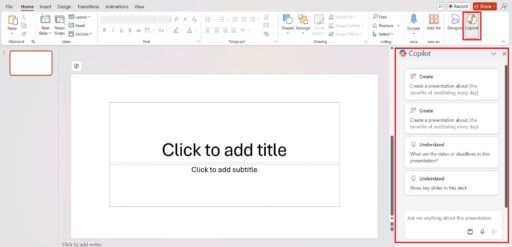
Microsoft has evolved from a simple word processor into an AI-driven productivity hub. The “Agent” functionality in Word is primarily powered by Microsoft 365 Copilot, an AI engine that acts as a digital assistant (or “Agent”) to help users draft, edit, and summarize documents.
In this guide, we will break down exactly how to activate and utilize these agent-like capabilities to streamline your workflow.
What is Agent Mode in Microsoft Word?
Before diving into the steps, it is important to define the core Entities involved:
- Microsoft 365 Copilot: The primary AI entity. It is a Large Language Model (LLM) integrated into Microsoft 365 apps that processes natural language commands.
- LLM (Large Language Model): The underlying technology (like GPT-4) that allows the agent to understand context and generate human-like text.
- OneDrive: Microsoft’s cloud storage service. The “Agent” requires files to be stored here to “read” and reference them effectively.
While Microsoft often uses the term “Copilot,” the “Agent” terminology refers to the AI’s ability to perform autonomous tasks, like scanning multiple files to write a report without you providing the specific text.
Prerequisites for Using Agent Mode
To access these features, you must meet the following requirements:
- Subscription: You need a Microsoft 365 Business or Enterprise subscription with a Copilot add-on.
- App Version: Ensure you are using the latest version of Microsoft Word (Desktop or Web).
- AutoSave: Your document must be saved to OneDrive or SharePoint for the AI to interact with the file data in real-time.
Method 1: Using the Drafting Agent to Create Content
The most common way to use the agent is to generate a document from scratch based on a prompt or existing files.
- Open a blank document in Microsoft Word.
- Locate the Copilot Icon: Look for the small “Draft with Copilot” floating box that appears on the blank page.
- Enter your Prompt: Type a specific instruction.
- Example: “Draft a project proposal for a new marketing campaign based on /[filename].”
- Reference External Files: Use the “/” (forward slash) command to search for other Word or PowerPoint files. This allows the Agent to pull data from your previous work.
- Generate and Refine: Click “Generate.” Once the draft is ready, you can choose to Keep it, Regenerate for a different tone, or Discard it.
Method 2: Using the Agent for Editing and Rewriting
If you already have text but need the agent to improve it, follow these steps:
- Highlight the Text: Select the paragraph or section you want to modify.
- Click the Copilot Logo: A small icon will appear in the left margin next to the selected text.
- Select “Rewrite”: The agent will provide several variations of your text.
- Adjust Tone: You can instruct the agent to make the text “More Professional,” “More Concise,” or “More Creative.”
- Visualize as a Table: You can also ask the agent to “Visualize as a table,” and it will convert your prose into a structured grid automatically.
Method 3: Summarization and Chat Mode (The Side-Car Agent)
Sometimes you don’t want to change the document; you just want to ask questions about it.
- Open the Copilot Pane: Click the Copilot button in the “Home” tab of the top ribbon. This opens a chat interface on the right side of the screen.
- Ask Questions: Use the chat box to interact with the document.
- Query: “Summarize the key risks mentioned in this contract.”
- Query: “What is the deadline mentioned on page 12?”
- Extract Data: Ask the agent to “Create a bulleted list of all action items in this meeting transcript.”
Pro-Tips for Better Agent Performance
- Be Specific: Instead of saying “Write a letter,” say “Write a formal letter to a client explaining the 5% price increase effective January 1st.”
- Context is King: Always tell the agent who the audience is (e.g., “Write this for a technical audience”).
- Verify Facts: While the agent is powerful, it can “hallucinate” (make up facts). Always double-check dates, figures, and legal citations.
Frequently Asked Questions (FAQ)
Q.1. Why don’t I see the Copilot or Agent button in my Word?
A. You likely lack the necessary license or your organization’s IT admin has not enabled it. It also requires the document to be saved in a supported cloud location like OneDrive.
Q.2. Can the Word Agent read PDFs?
A. Yes, if you upload a PDF to your OneDrive, you can reference it using the “/” command while drafting a Word document.
Q. 3. Is my data safe when using Agent Mode?
A. For Enterprise users, Microsoft does not use your prompts or document data to train its public Large Language Models. Your data stays within your organization’s “tenant.”
Q.4. Can I use Agent Mode offline?
A. No. Because the AI processing happens on Microsoft’s specialized servers (GPUs), you must have an active internet connection to use the agent features.